


PDF Scanner app - TapScanner
4.514.56K Reviews
App Specs
- Version
- 3.1.16
- Updated On
- License
- Free
- Downloads
- 100,000,000+
- Developer
- Tap AI
- Categories
- Business
- Platform
- Android
Screenshots
 Analysis by AppCompare
I rarely think about a scanner until somebody needs a signed form, a readable receipt, or a clean copy of a page right away. That is the everyday problem PDF Scanner app - TapScanner is built around: turning a phone camera into a practical way to capture paper and keep a digital copy. I find it most useful when I need a document quickly, but the experience also depends on how well the phone, the room, and the network cooperate.
When a scan needs a connection
Capturing a page is only one part of a scanning workflow. The next step might be saving a PDF, sending it to someone, or moving it into cloud storage, and those actions can depend on having a reliable connection. I would treat the camera capture and the later handoff as separate stages: make sure the page is legible first, then share it when the connection is ready.
That distinction matters in a busy moment. If I am scanning a form before leaving an office, I can focus on framing and checking the result rather than assuming an upload has already reached its destination. For anything time-sensitive, I would open the exported file or confirm the recipient has received it instead of relying on a share action alone.
Guides and Analysis on PDF Scanner app - TapScanner
Useful in the places paper actually appears
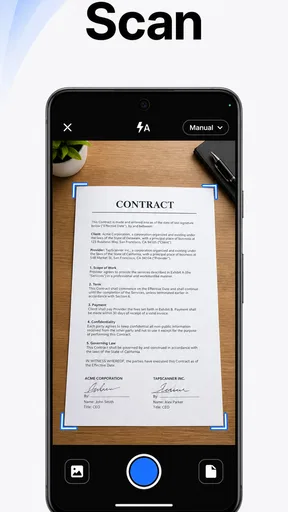
The app makes sense for more than a neat desk. A student can capture a handout after class, someone working away from an office can digitize a receipt, and a household can keep copies of appliance paperwork or forms together. Those situations often involve awkward lighting, a small table, or little time, so automatic edge detection is helpful even though I still check its crop before treating a scan as finished.
For a multi-page document, I would pause briefly between pages to keep the order straight and inspect each capture. That small habit is more reliable than scanning a stack quickly and discovering later that a page is tilted, missing, or difficult to read. Batch capture is convenient, but it does not remove the need for a final review.
Recovery when capture or sharing goes wrong
Automatic detection will not always understand a page with a faint border, a shadow, or a busy background. The manual adjustment described in the original workflow is useful here: correct the edges before applying a filter, since a strong black-and-white treatment cannot rescue text that has been cropped off. If a page looks muddy, I would try another capture under brighter, more even light before spending time editing it.
Network trouble calls for a different kind of patience. A scan that looks good on screen still needs a successful export or transfer if another person is waiting for it. I would keep the document open until I have checked the saved file, and retry sharing only after confirming which version is current. This is especially worthwhile for a contract or report where sending an incomplete PDF would create more work than waiting a moment.
Worth Reading Before You Choose

Switching to Android Auto Means Rethinking Your Driving Routine

Google Calendar Makes a Crowded Week Easier to Manage

Ludo King Makes the Most of the Minutes Between Plans

Baby Panda World Brings Quick Play to Modern Phones, but Its Game Library Feels Busy
ESPN’s Live Game View Makes Following Close Games Easier

QuizzLand Review: A Good Fit for Short Trivia Breaks, Not Every Player
Choosing a sensible balance for data and storage
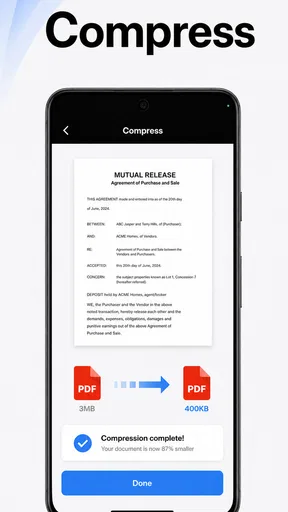
Compression can help when a PDF is bulky or a phone is short on space, but I would compare the compressed copy with the original before deleting anything. Fine print, stamps, and pale signatures are the details most likely to suffer when a file is reduced too aggressively. For a form that needs to be printed or reviewed closely, readability should win over a smaller attachment.
Organization also pays off later. Instead of relying on one crowded scan history, I would use folders with names that identify the purpose or date in ordinary language, such as “travel receipts” or “lease paperwork.” That makes a file easier to find when sharing from a phone, where browsing a long list is less pleasant than sorting it out on a computer.
Using TapScanner in a real document routine
My practical routine would be simple: capture one page, inspect its edges and legibility, apply a filter only if it improves the page, then add the next sheet. After the last page, I would check the PDF from beginning to end, choose compression only if needed, and export or share it. That sequence uses the app’s useful tools without treating automation as a substitute for checking the result.
First Impressions: Setting Up and Navigating
Right off the bat, downloading and installing the TapScanner was a breeze. Available for both Android and iOS, it’s just a quick search away on your app store. Once installed, the interface is slick and straightforward, which is a relief because nobody likes fumbling around with confusing menus.
As soon as you open it, you’ll notice the minimalist design. The app doesn’t bombard you with too many choices upfront, which I appreciate. You get a clear camera interface ready to capture your documents. The app also offers a little tutorial to get you started, which is helpful if you’re new to scanner apps.
Scanning Features: Does It Get the Job Done?
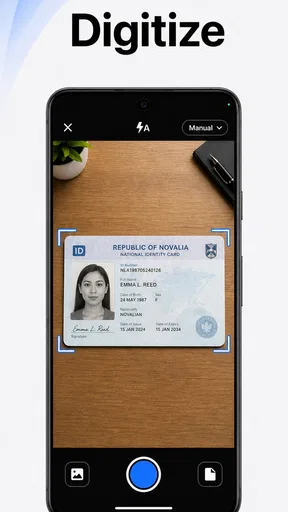
Now, let’s talk about the scanning capabilities. The app uses your phone’s camera to capture documents, and it does a decent job of automatically detecting edges. I tested it with a few tricky documents, and while it didn’t nail the detection every time, a quick manual adjustment did the trick.
What I found impressive was the variety of filters available. You can turn a dull, grayish scan into a crisp black and white document with just a tap. It also supports color enhancement, which is great for scanning images or colored text. The quality of the scans is pretty solid, making it a handy tool for both work and personal use.
Organizing and Exporting: Keeping It Tidy
Once you’ve scanned your documents, TapScanner offers several options for organizing them. You can create folders to keep everything neat and tidy. This feature is a lifesaver for someone like me who tends to get overwhelmed with digital clutter.
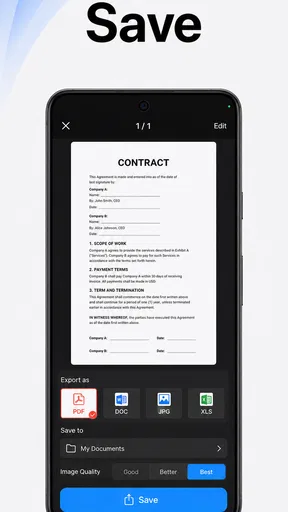
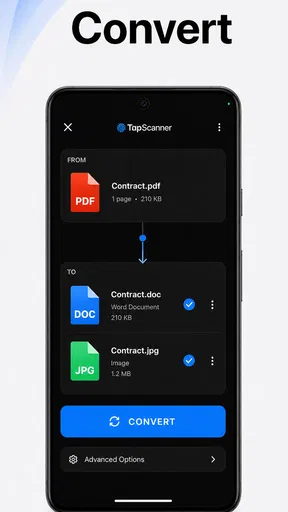
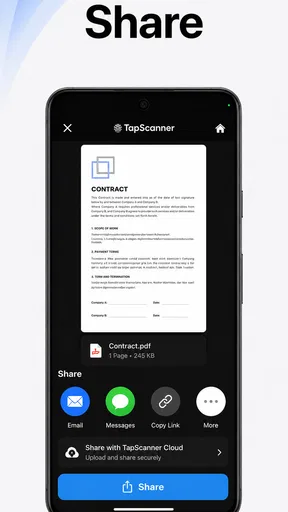
Exporting is straightforward too. You can save your scans as PDF or JPEG files, and the app even allows you to compress PDFs to save space. Sharing is a piece of cake with options to send via email, social media, or even upload directly to cloud storage services like Google Drive and Dropbox. This flexibility is a big win in my book.
Additional Features: More Than Just Scanning
Beyond basic scanning, the app packs some nifty extras. For instance, there’s an OCR (Optical Character Recognition) feature that can convert scanned text into editable text. It’s not perfect, especially with complex fonts, but it’s a feature that can be incredibly useful for digitizing notes.
Another cool feature is the batch scanning capability. If you’re scanning a lengthy document or multiple pages, you can scan them all in one go, and the app will compile them into a single PDF file. This is super convenient if you’re dealing with contracts or multi-page reports.
Usability and Performance: Smooth Sailing?
In terms of usability, TapScanner scores high. The app runs smoothly without lagging, even when processing multiple documents at once. It’s user-friendly enough for tech novices but also offers enough features to satisfy more demanding users.
That said, the free version does come with ads, which can be a bit intrusive at times. If you find them annoying, the premium version might be worth considering as it offers an ad-free experience along with additional features.
Who it suits, and where it falls short
As a business app, TapScanner is a practical fit for people who handle paperwork in small, frequent bursts rather than those who need a dedicated office scanner. I would recommend it to students, freelancers, field workers, and anyone who wants searchable text or a shareable copy without carrying extra equipment. Its OCR is best treated as a starting point: I would review extracted text carefully before using it in a formal document, especially if the page has unusual typography or a complicated layout.
It is less appealing if your main need is archiving large volumes of paper with consistent, highly controlled results. A flatbed scanner or a copier can be a better choice for delicate originals, oversized pages, or repeatable batches where exact framing and color matter. A phone camera has to contend with hand position and ambient light; TapScanner can make the result cleaner, but it cannot make those physical constraints disappear.
For comparison, the built-in camera is enough when I only need a quick photo for myself. A dedicated scanner app earns its place when I want page edges corrected, a document assembled into a PDF, or a lighter file to send. TapScanner’s mix of cropping, filters, folders, OCR, and batch capture makes it more useful than a plain camera for recurring paperwork, while a desktop document workflow may still be better for heavy editing or long-term filing.
A realistic weekday workflow
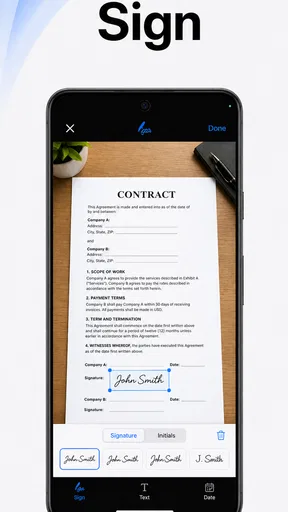
Imagine I receive a paper form that must be sent before the end of the day. I would place it on a contrasting surface near even light, capture it, and check that no signature or small-print line sits near the crop. If the page is gray, I might try black and white; if colored marks carry meaning, I would keep the color treatment instead. Then I would export the PDF, inspect the finished page, and share it once I know the file is the right one.
If the form has several pages, I would keep them in the intended order and inspect the complete PDF rather than only the most recent capture. That catches missing sheets and repeated pages before they reach the recipient. For a receipt, by contrast, a JPEG may be sufficient when I just need a quick visual record; for a document that must stay together or be printed, PDF is usually the more sensible choice.
What to expect before installing
TapScanner is free to start using, though it includes in-app purchases ranging from about $1.49 to $99.99 per item. The free experience includes ads, so I would first see whether they interrupt my own routine before considering a paid option. The app is rated for Everyone, and its current version is 3.0.94, with support beginning at Android 9. Tap AI is the developer. Those details make it accessible to a broad range of users, but the right choice still depends on whether the scanning workflow fits your needs.
Its scale is notable: it has more than 100 million installs, with an average rating of 4.6 from around 2.8 million ratings and roughly 14,000 written reviews. I see that as a sign many people find the basic idea useful, not a guarantee that every phone, document, or export will behave identically. I would judge it on a couple of real documents before making it part of an important routine.
Final Thoughts: Is TapScanner Worth It?
So, is PDF Scanner app - TapScanner worth your time? If you’re looking for a reliable, easy-to-use scanner app, I’d say give it a shot. It’s great for everyday scanning needs, and its ability to export and organize documents is quite impressive.
While it’s not flawless and the ads in the free version can be pesky, the overall functionality and features make it a solid choice. Whether you’re a student, professional, or just someone who likes to keep things organized, this app has something to offer.
So go ahead, download it, and let me know what you think. Happy scanning!
Pros
- Fast scanning with high-quality results.
- Easy-to-use interface for quick navigation.
- Supports multiple file formats for export.
- Automatic edge detection and cropping.
- Integrates with cloud services like Google Drive.
Cons
- Free version includes frequent ads.
- Limited features without premium upgrade.
- Occasional errors in text recognition.
- High storage usage for scanned files.
- Limited editing tools for annotations.
FAQs for PDF Scanner app - TapScanner
What features does TapScanner offer for document scanning?
TapScanner provides a wide range of features including automatic edge detection, multiple filters to enhance document clarity, and the ability to scan in high resolution. It also supports batch scanning, allowing users to scan multiple pages quickly. Additionally, users can export documents in PDF or JPG formats and easily share them via email or cloud services.
Is TapScanner available for both Android and iOS devices?
Yes, TapScanner is available for both Android and iOS platforms. Users can download the app from the Google Play Store for Android devices and the App Store for iOS devices. The app is designed to provide a seamless experience across different devices, ensuring consistent functionality and features.
Does TapScanner offer cloud storage integration?
TapScanner integrates with several cloud storage services, allowing users to save and access their scanned documents easily. Supported services include Google Drive, Dropbox, and OneDrive. This feature ensures that users can securely back up their documents and access them from any device connected to their cloud accounts.
Are there any in-app purchases or subscription fees for TapScanner?
While TapScanner can be downloaded for free, it does offer in-app purchases and subscription options for additional features. Premium subscriptions may include benefits such as removing ads, enhanced scanning capabilities, and access to advanced editing tools. Users can choose a subscription plan that best fits their needs.
How does TapScanner ensure the privacy and security of scanned documents?
TapScanner prioritizes user privacy by implementing strong encryption protocols to protect scanned documents. The app does not store any documents on its servers, ensuring that all data remains on the user's device unless explicitly shared by the user. Users are also advised to use secure cloud services for additional protection.


